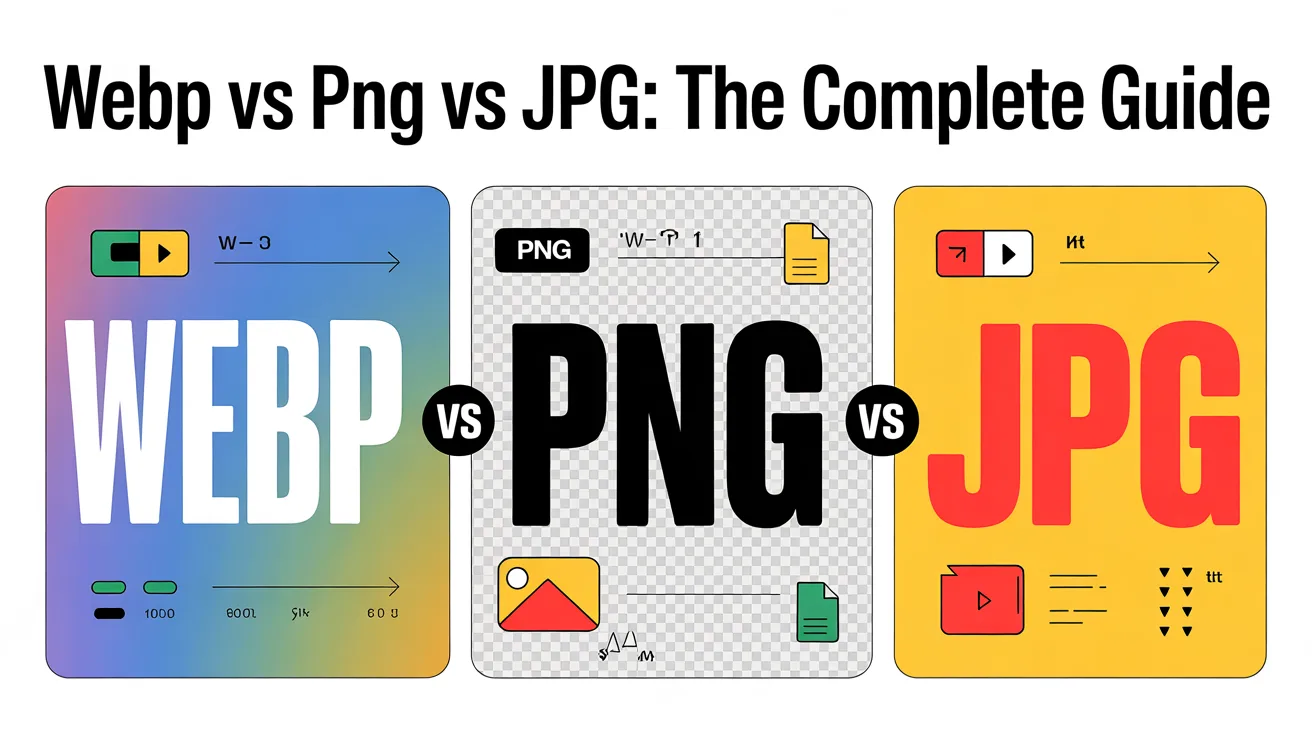
WebP vs PNG vs JPG: The Complete Guide to Optimized Web Images
In today’s digital-first world, images are more than just visual content—they are powerful tools that influence user engagement, page speed, SEO, and conversion rates. Whether you’re running a blog, an e-commerce store, or a SaaS platform, choosing the right image format can make the difference between a fast, high-performing website and a slow, poorly optimized one.
In this comprehensive guide, we’ll break down the three major image formats—WebP, PNG, and JPG—and provide practical insights, step-by-step optimization tips, real-world case studies, and expert recommendations. By the end of this guide, you’ll have everything you need to improve website speed, enhance SEO, and deliver stunning visuals without sacrificing performance.
Why Image Formats Matter in Modern Web Design
Images often account for 50–60% of a webpage’s total size. Slow-loading images lead to frustrated users, high bounce rates, and poor rankings on search engines. Optimizing images is not just a design concern; it’s a critical performance and SEO strategy.
- User experience: Faster images improve engagement, reduce abandonment, and increase time on page.
- SEO benefits: Optimized images improve Core Web Vitals like Largest Contentful Paint (LCP) and First Contentful Paint (FCP).
- Conversions: Faster pages lead to higher conversion rates, especially for e-commerce and mobile users.
For deeper insights on website performance, see the Google Web Dev: Fast Loading Pages guide.
Understanding JPG (JPEG)
JPG, or JPEG (Joint Photographic Experts Group), is one of the oldest and most widely used image formats. It uses lossy compression, meaning it reduces file size by removing some image data. With careful compression, JPG can produce visually pleasing images while keeping file sizes small.
Key Characteristics of JPG
- Ideal for photographs and complex images with gradients.
- Offers adjustable compression to balance quality and file size.
- Universally supported across browsers, apps, and platforms.
Pros and Cons
Pros:
- Highly efficient compression for large images
- Universal compatibility
- Smaller file sizes improve page load speed
Cons:
- Loses quality with heavy compression
- No transparency support
- Repeated editing can degrade image fidelity
Example: A travel blog using high-resolution photographs for destinations might use JPG images at 70–85% quality to balance visual appeal with performance.
For technical details, check the W3Schools JPG reference.
Understanding PNG
PNG (Portable Network Graphics) is a lossless image format, preserving all original image data. It is widely used for images that require sharp lines, text clarity, and transparency.
Key Characteristics of PNG
- Perfect for logos, icons, UI elements, and screenshots.
- Supports transparency (alpha channel).
- Larger file sizes compared to JPG but maintains quality.
Pros and Cons
Pros:
- Lossless image quality
- Full transparency support
- Ideal for graphics with text or sharp edges
Cons:
- Larger file sizes can impact page speed
- Not ideal for photographic images
Example: A tech company’s website logo placed over multiple background colors would benefit from a PNG with transparency.
Learn more from W3Schools PNG guide.
Understanding WebP
WebP is a modern image format developed by Google to deliver smaller file sizes with high quality. WebP supports both lossy and lossless compression, transparency, and even animation.
Key Characteristics of WebP
- Combines the advantages of JPG and PNG.
- Supports lossy and lossless compression.
- Handles transparency (like PNG) and animation (like GIF).
- Significantly reduces image file sizes without noticeable quality loss.
Pros and Cons
Pros:
- 25–35% smaller file sizes than JPG or PNG
- Supports transparency and animation
- High-quality images for both photos and graphics
Cons:
- Some legacy browsers may require fallback images
- Older image editing tools may not support WebP natively
For browser support and technical reference, see MDN Web Docs: WebP.
When to Use JPG, PNG, or WebP
| Use Case | JPG | PNG | WebP |
|---|---|---|---|
| Photography |  |
 |
|
| Graphics/Icons | |
|
|
| Transparency | |
|
|
| Small File Size | |
|
|
| Animation | |
|
|
| Browser Support | Universal | Universal | Modern browsers |
Practical Recommendations
- JPG: Best for photos or images with many colors. Compress at 70–85% quality for performance.
- PNG: Best for graphics, UI elements, and logos requiring transparency. Use PNG-8 when possible to save space.
- WebP: Best for high-quality, optimized images that balance size and performance. Always provide JPG/PNG fallback for legacy browsers.
Step-by-Step Guide to Optimizing Images
Step 1: Use the Right Tools
- Adobe Photoshop: Use “Save for Web” feature.
- Squoosh.app: Browser-based optimization.
- ImageMagick: Command-line batch processing.
- TinyPNG / TinyJPG: Automated online compression.
Step 2: Resize Images to Actual Display Dimensions
Oversized images unnecessarily slow down your site. Use responsive techniques to serve appropriate sizes.
<picture>
<source srcset=”image.webp” type=”image/webp”>
<img src=”image.jpg” alt=”Optimized web image” loading=”lazy”>
</picture>
Step 3: Compress Appropriately
- JPG: 70–85% quality
- WebP: 75–90% quality
- PNG: PNG-8 if possible, PNG-24 for transparency
Step 4: Implement Lazy Loading
Lazy loading defers images until they enter the viewport, improving page speed.
<img src=”image.webp” alt=”Optimized image” loading=”lazy”>
Real-World Case Studies
E-commerce Brand: Faster Load Times
An online fashion retailer switched product photos from PNG to WebP:
- 30% smaller file sizes
- Faster page loads
- 15% increase in mobile conversions
Insight: Reducing image size without losing quality improves user trust and engagement.
Publisher Site: SEO and Core Web Vitals
A news site implemented responsive WebP images with lazy loading:
- Improved LCP and FCP metrics
- Higher organic traffic
- Increased ad viewability
Insight: Optimized images enhance SEO and monetization potential.
For best practices on web optimization, see HubSpot Resource: Web Optimization.
Expert Tips for Image Optimization
- Automate image processing with Gulp, Webpack, or CMS plugins
- Always preview compressed images before deployment
- Use semantic
alttext for accessibility and SEO - Test performance with PageSpeed Insights or GTmetrix
- Combine responsive images with lazy loading and WebP delivery
Common Challenges and Solutions
Browser Compatibility for WebP
- Problem: Some older browsers do not support WebP.
- Solution: Use
<picture>element with JPG/PNG fallback.
Large PNG Files
- Problem: Oversized PNGs can slow down pages.
- Solution: Convert to SVG for simple graphics or use PNG-8/WebP.
Quality vs. Compression
- Problem: Over-compression leads to visible artifacts.
- Solution: Preview images and adjust quality settings.
Frequently Asked Questions
Q1: What is the best image format for my website?
A1: Use WebP as the primary format, JPG for photos, and PNG for graphics or transparency. Always include responsive delivery and fallbacks for legacy browsers.
Q2: How does image choice affect SEO?
A2: Optimized images improve Core Web Vitals, page speed, and user experience, all of which affect search rankings.
Q3: Can I convert existing images to WebP?
A3: Yes, using tools like Squoosh, ImageMagick, or CMS plugins. Always check for visual fidelity.
Q4: Is WebP compatible with all browsers?
A4: Modern browsers support WebP. Use fallback images for older browsers.
Actionable Takeaways
- Audit all site images and convert to WebP where appropriate
- Resize images to actual display dimensions
- Implement compression carefully for JPG, PNG, and WebP
- Use lazy loading and responsive images for performance
- Monitor performance metrics with PageSpeed Insights or GTmetrix
For detailed case studies and trends in performance, read Forbes: Web Performance Study.
Recent Posts
Why Your Blog Gets Traffic But No Clicks (3X Your CTR Fast)
You check Google Analytics. The numbers look solid—thousands of impressions, steady organic traffic rolling in. But then you see the ugly truth: your click-through rate is hovering at 1.2%, and your phone isn’t ringing with leads. Sound familiar? This is the silent killer of blogging success. You’re winning the visibility battle but losing the engagement...
Read More
Top AI Side Hustles That Require Zero Investment: The Complete Beginner’s Guide
The landscape of earning money online has fundamentally shifted. What once required expensive software, years of training, or significant startup capital can now be accomplished with nothing more than a laptop, an internet connection, and free artificial intelligence tools. The barrier to entry hasn’t just been lowered—it has been demolished. Whether you are a student...
Read More
Unlock the Power of AI: How Beginners Are Making $500/Month with AI Tools
Last year, I was stuck in the same cycle most people face when trying to earn extra income online. I spent hours creating content, designing graphics, or handling repetitive tasks, only to see minimal returns. Then I started experimenting with AI tools—not as a magic button, but as smart assistants that multiply effort. Over several...
Read More